Layered Surfaces
Understand how desk height, monitor position, and peripheral placement create a cohesive workspace layer system that feels natural throughout your day.
Discover practical guides for creating a balanced relationship with your desk. Explore environment adjustments and daily habits that may support comfortable, focused computer work. Educational information only — not medical or occupational health advice.
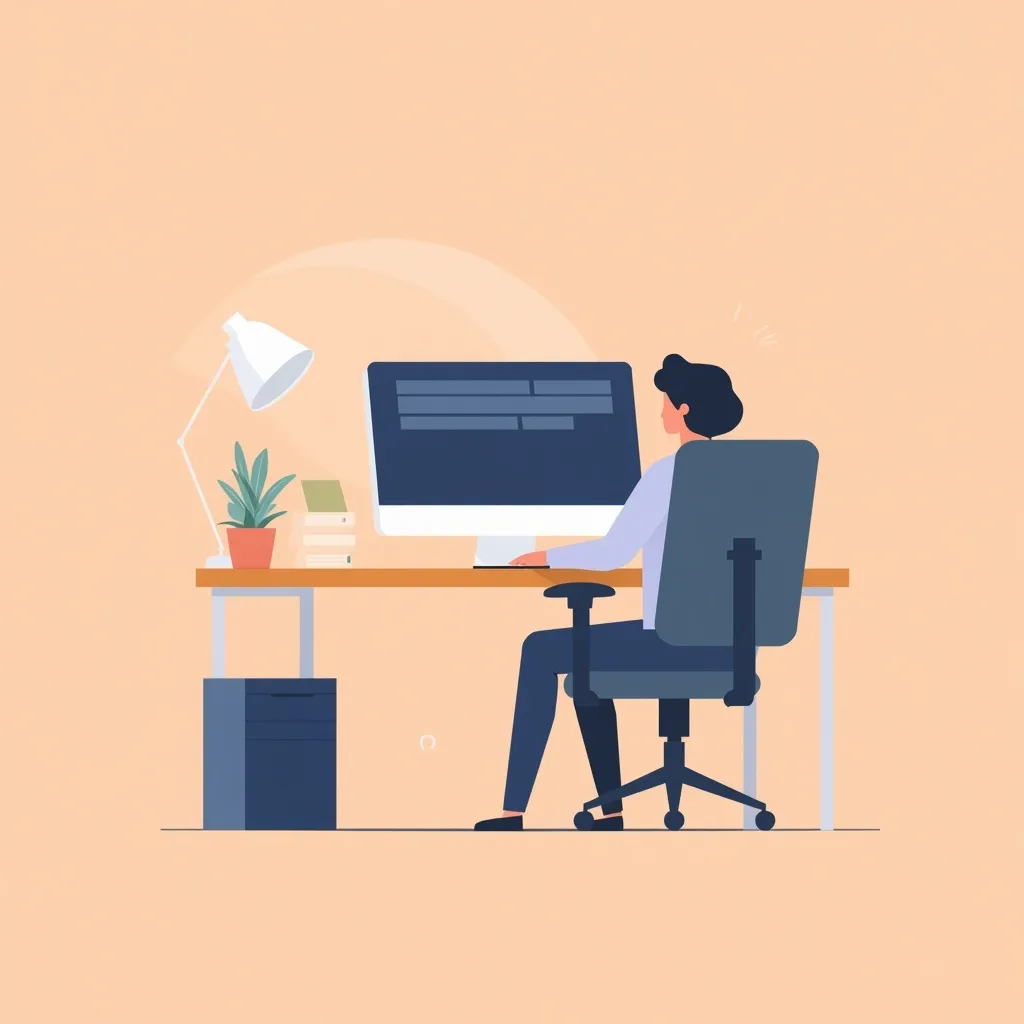
Computer work is not just about equipment — it is about how your surroundings support focus and ease. We guide you through spatial awareness without rigid rules or correction systems.
Understand how desk height, monitor position, and peripheral placement create a cohesive workspace layer system that feels natural throughout your day.
Learn to notice subtle misalignments in your setup before they become discomfort. Small adjustments may make a noticeable difference in how your workspace feels day to day.
Create open space around your workstation. Clutter and cramped arrangements affect how freely you move and how rested you feel during long sessions.
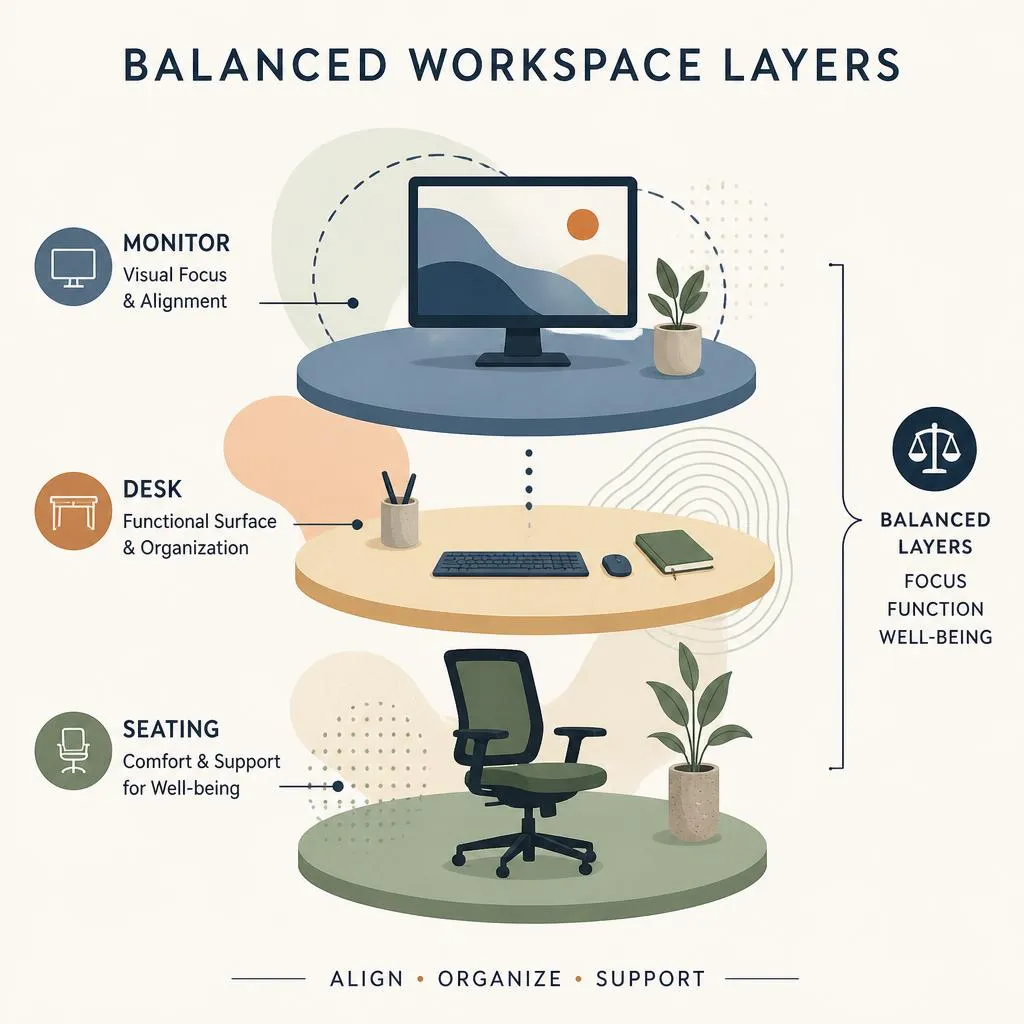
Every comfortable work session begins with a well-considered foundation. Chair height, foot placement, and desk surface all contribute to how naturally you settle into focused work.
Our approach emphasizes observation over prescription. Notice what feels effortless and what creates tension — then adjust with intention rather than following generic templates.
Review Your SetupMonitor placement shapes how you hold your head and where your eyes rest. A well-positioned screen may help reduce perceived strain and keep your attention anchored comfortably.
Position the top of your screen roughly at eye level. This may encourage a neutral head position and help avoid prolonged downward gazing that can tire neck muscles.
Keep your monitor at a comfortable reading distance — typically an arm's length away. Adjust based on screen size and personal visual preference.
Angle your screen to minimize reflections from windows and overhead lighting. A matte screen filter can further soften harsh light sources in your room.
Stillness has its place, but gentle transitions throughout the workday may help you stay more comfortable. Integrating short movement breaks can be part of a balanced work rhythm.
Set gentle reminders to stand, stretch, or walk briefly every 45 to 60 minutes. Consistency matters more than duration.
A two-minute walk to another room resets your spatial awareness and gives your eyes a chance to focus at varying distances.
Simple shoulder rolls, wrist circles, and neck tilts may help ease accumulated tension without disrupting your workflow momentum.
Use water breaks as natural transition points. Standing to refill your glass creates a brief but meaningful shift in position.
Beyond furniture arrangement, your ambient environment shapes how comfortably you work. Consider these often-overlooked factors in your daily workspace experience.
Position your desk perpendicular to windows when possible. Soft natural light supports alertness without creating harsh shadows on your screen.
Fresh airflow may help reduce stuffiness during long sessions. Open a window periodically or use a quiet fan to maintain a comfortable room temperature.
Minimise distracting noise with soft background sound or noise-cancelling headphones. A calm acoustic environment may support sustained concentration.
Before diving into tasks, take a moment to settle into your workspace. A brief check-in with your surroundings creates a smoother transition into focused work.
Sit back fully in your chair, feet flat on the floor or a footrest. Adjust lumbar support so your lower back feels gently supported, not forced.
Keep keyboard and mouse at elbow height with wrists in a neutral, relaxed position. Avoid resting wrists on hard desk edges during typing.
Blink consciously a few times and look at a distant object for twenty seconds. This simple practice may give your eyes a brief rest before screen-intensive work.
Our guides offer practical, approachable advice for anyone who spends significant time at a computer. Educational content only — no scoring systems, paid products, or clinical assessments.
Get in Touch